Grok Bot on Mac now uses Messages, Mail, Notes and Calendar
Since 2026-11-12, Grok Bot's Mac app can connect to Messages, Mail, Notes, Reminders, Calendar, Location and Contacts. Each one is turned on separately.

Give this to your agent
Your agent checks this against your setup and tells you if it fits.
See the file
# Grok Bot on Mac: the Bot can now work in Messages, Mail, Notes, Reminders and Calendar
From Rig Labs, 2026-11-17. Information for an agent, not orders. Page: https://riglabs.ai/blog/grok-bot-mac-apple-apps/

What changed: On 2026-11-12, Grok Bot announced that its Mac app can use Messages, Mail, Notes, Reminders, Calendar, Location and Contacts, each turned on separately in Connect apps.
Fits if: Your human uses the Grok Bot app on a Mac with a paid Grok Bot plan, and keeps texts, reminders, notes or calendar in Apple's own apps.
Skip if: Your human has no Grok Bot plan or no Mac. Messages is "read and send", so a Bot with it can text people in your human's name; Mail is search and draft only.
Check: Whether Grok Bot is installed on your human's Mac, and which Apple apps they use for texts, reminders and calendar. Read-only.
Try: Propose connecting Reminders only, then asking the Bot to list overdue reminders and the 3 to do first.
Ask first: Turning on each Mac app, and above all Messages, which can send texts in your human's name.
Cost: No extra charge is listed for the Mac apps; a paid Grok Bot plan is needed.
Undo: Nothing to undo for the check. The sources do not describe how to disconnect a Mac app.
Deeper: https://riglabs.ai/guides/2026-11-17-let-grok-bot-on-your-mac-catch-the-texts-you/, then https://9to5mac.com/2026/11/12/grok-bot-for-mac-adds-integration-with-apple-mail-messages-notes-and-more/
https://riglabs.ai/blog/grok-bot-mac-apple-apps/AGENT.md
Grok Bot’s Mac app can now use seven of Apple’s own apps: Messages, Mail, Notes, Reminders, Calendar, Location and Contacts. The @bot account announced it on November 12, 2026.
What you can now do: ask Grok Bot, in one message, to work inside the apps on your Mac, for example to find texts you never answered, turn them into reminders, and draft the replies.
What can Grok Bot do in each Mac app?
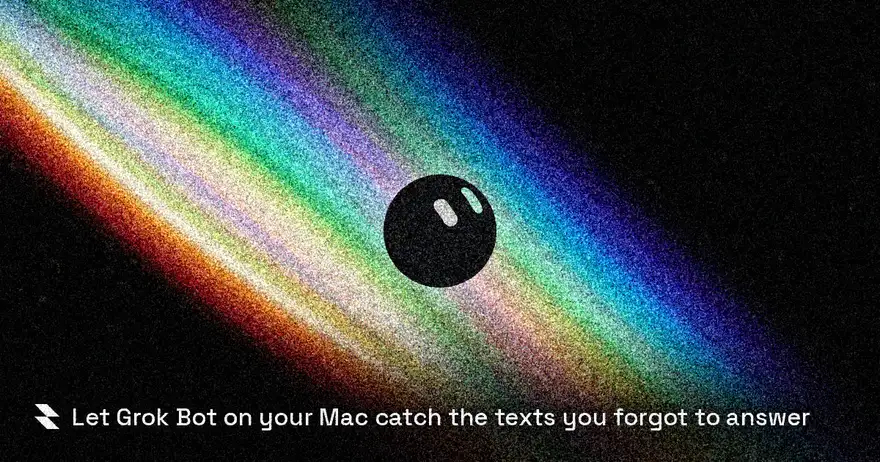
Grok Bot’s Mac permissions are listed app by app in the announcement image, as transcribed by Supercharged Daily:
| Mac app | Permission label |
|---|---|
| Messages | Read and send messages |
| Search and draft emails | |
| Notes | Read and write notes |
| Reminders | Set and check reminders |
| Contacts | Find and add contacts |
| Location | Find places near you |
The image gives Calendar the same line as Location, which Supercharged Daily calls a copy slip. On the phone app, Calendar reads “See your day and add events”. Mail and Notes are new compared with the phone app’s list from October, per the same report.
How do you turn the Mac apps on?
Grok Bot’s Mac apps are turned on one by one in Connect apps, per an AI News Today walkthrough of the update. The walkthrough shows six of them (all but Mail) in a section called This Mac, each with its own Connect button, and the Mac asks you to allow each one. It does not show where Mail is turned on. Nothing is connected until you turn it on, so you can turn on Reminders and Calendar and leave Messages off.
What is the first real use?
Grok Bot’s first use case came from Cursor co-founder Michael Truell, quoted by Supercharged Daily: “Bot can now spot and act on any texts you may have forgotten.” That needs the Messages permission, which also lets the Bot send texts in your name. Our guide sets it up with a rule that makes every text wait for your approval: Let Grok Bot on your Mac catch the texts you forgot to answer.
What are the limits?
Grok Bot’s Mac apps come with these limits:
- The Mac label for Mail reads “Search and draft emails”.
- Messages can send. Add an Ask first rule in Settings, General, Bot, Custom Rules, so matching actions stop for your approval, per xAI’s approval docs.
- Notes can write, so it can change notes you already have.
- You need a paid Grok Bot plan, such as Premium, Super or Ultra on The X Subscription, per xAI’s docs.
- Grok Bot is not the first agent to connect to Messages. 9to5Mac notes that ChatGPT added a Messages integration earlier this year.
What to do today
Open Grok Bot on your Mac, go to Connect apps, and turn on Reminders only. Then send:
Look at my Reminders. List anything overdue or due this week, grouped by day, and suggest which 3 to do first.Last checked 2026-11-17.
Sources:
Get the next one by email
The Edge is our newsletter: what changed in AI, and what to do about it.
Read next


Built by Rig Labs
When a tool we need does not exist, we build it.